Dynamic programming for the web
Before we start
If HTML is the skeleton and CSS the visual appearance, JavaScript is the page's logical mind and its muscles. It is the tool that turns a static text document into a living application, able to react to the mouse, send and receive information from the server in the background, and change its appearance dynamically.
In this guide I won't drown you in abstract syntax and purely academic exercises. We'll work on building solid mental models instead: understanding how the browser engine reasons, how to tame the asynchrony of web requests, and how to manage the user interface cleanly and safely.
Open the developer tools console and let's start writing the logic of our code.
1. The browser's mind: what JS is and how it works
A piece of history worth knowing for job interviews: JavaScript has nothing to do with Java. They share only their first four letters, purely for marketing reasons dating back to the mid-1990s. JS was born to run directly in browsers, making pages interactive.
Modern browsers run JavaScript at supersonic speed thanks to complex engines like **V8** (used by Chrome, Edge and Node.js). These engines perform a compilation called **JIT (Just-In-Time)**: they convert source code into highly optimized machine code a fraction of a second before running it.
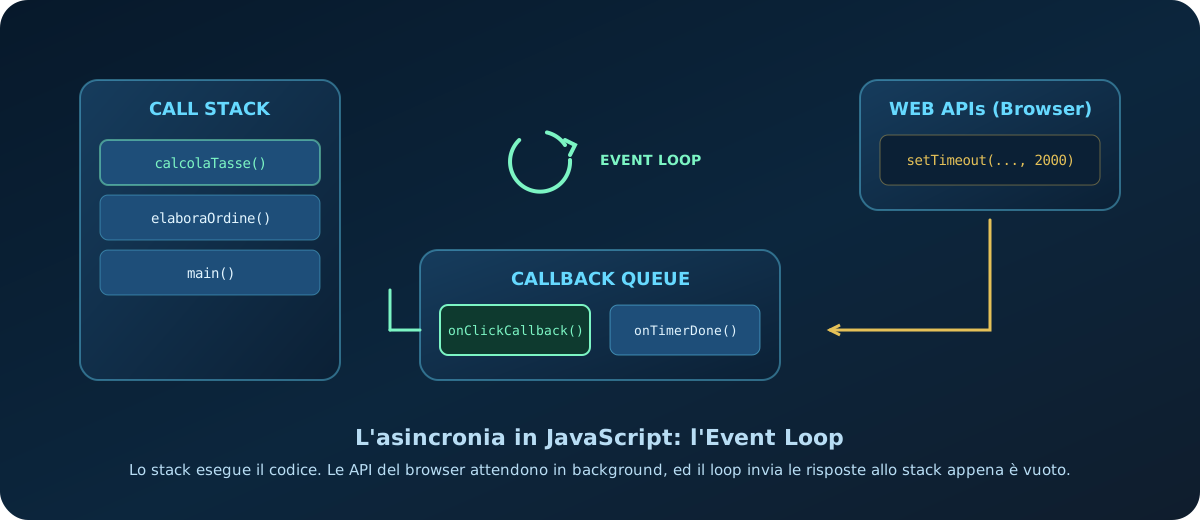
The one-chef kitchen metaphor (single thread and the event loop)
The most important concept to hold on to is that JavaScript is **single-threaded**: it has one line of execution, which means it can only do one thing at a time.
Picture that line of execution as a **kitchen with a single chef**. If a customer orders a steak that needs 20 minutes on the grill (a network request, or waiting for a file from the server), the chef can't just stand frozen in front of the grill doing nothing else — the kitchen (your site) would seize up and the customers would storm out.
Here is how JavaScript solves the problem:
- The chef puts the steak on the grill and sets a timer.
- Meanwhile, the chef carries on preparing starters and salads for the other orders (synchronous code keeps running).
- Watching the cooking is delegated to an assistant outside the kitchen (the browser's **Web APIs**).
- When the timer rings, the assistant puts the cooked steak on a conveyor belt running to the kitchen door (the **callback queue**).
- The chef constantly checks whether the main counter is free. As soon as the current orders are done (thanks to the **event loop**), they take the steak off the belt and plate it up.
This lets JavaScript handle very long operations without ever freezing the user interface.
2. The script tag: async vs defer
To attach a JavaScript file to an HTML page we use the `<script src="script.js"></script>` tag. But where should that tag go? By default, when the browser meets a script while parsing HTML it stops building the page to download and run the file, which dramatically slows down visual loading.
To solve this, modern developers put the tag in the page head using two magic attributes:
<!-- Scarica in background, esegue IMMEDIATAMENTE appena pronto (può bloccare l'HTML) -->
<script src="statistiche.js" async></script>

<!-- Scarica in background, esegue SOLO quando l'HTML è stato interamente analizzato -->
<script src="app-logica.js" defer></script>
Which one to choose?
- `async`: perfect for external scripts that don't depend on other files and don't need to interact with the page immediately (Google Analytics or Facebook tracking pixels, say). Execution order is not guaranteed.
- `defer`: the standard for your own logic files. It guarantees scripts run in exactly the order they appear in the HTML, and only once the page structure is fully ready — which avoids errors where code tries to modify tags that don't exist yet.
3. Variables, scope and a final goodbye to var
In JavaScript, **scope** defines the region of code where a variable is visible and usable. There are three levels of scope:
- Global scope: visible everywhere in the file.
- Function scope: visible only inside the function where it was declared.
- Block scope: visible only inside a pair of curly braces `{ ... }` (as in a `for` loop or an `if` statement).
The problem with var, and the stability of let/const
JavaScript used to have only `var`. But `var` **completely ignores block scope**, "escaping" out of loops and conditionals and creating silent bugs that are hard to track down. Modern JavaScript introduces `let` and `const`, which respect block scope strictly:
if (true) {
  var scappa = "Sono visibile fuori!";
  let protetta = "Rimango qui dentro.";
}
console.log(scappa);    // Stampa "Sono visibile fuori!"
console.log(protetta);  // ReferenceError! (Corretto e sicuro)
const locks the reference, not the object
Many developers wrongly believe that declaring an object with `const` makes it immutable. It doesn't: `const` prevents you from **reassigning the variable** to another object, but it still lets you **change the object's internal properties**:
const utente = { nome: "Chiara" };
utente.nome = "Sofia"; // Funziona perfettamente! L'oggetto viene modificato.

// utente = { nome: "Marco" }; // TypeError! (La riassegnazione è bloccata)
Rule of thumb: always reach for `const` first. Switch to `let` only when you know that variable's value will have to be reassigned (loop counters, for instance). Banish `var` from your code for good.
4. Data types, references and the equality of clones
JavaScript's data types fall into two broad logical categories:
- Primitive types (String, Number, Boolean, Null, Undefined, Symbol, BigInt): passed **by value**. Copy a variable and you create a completely independent clone.
- Reference types (Object, Array, Function): passed **by reference** (a memory address). Copying an object only copies the key that opens it in memory: change the copy and you change the original.
let nome1 = "Alice";
let nome2 = nome1; // Copia il valore
nome2 = "Bob";
console.log(nome1); // "Alice" (Rimane intatta)

let array1 = [1, 2];
let array2 = array1; // Copia il riferimento in memoria
array2.push(3);
console.log(array1); // [1, 2, 3] (Modificata anche l'originale!)
Loose equality (==) vs strict equality (===)
Never use the loose equality operator `==`. It tries to convert differing types automatically before comparing them, producing nonsense like `"" == 0` (true) or `0 == false` (true).
**Always** use strict equality `===` (and its opposite `!==`), which checks both value and type without any conversion:
console.log(5 == "5");  // true (Conversione automatica di tipo)
console.log(5 === "5"); // false (Tipi diversi: Number vs String)
5. Functions: classic vs arrow (and the mystery of this)
Functions wrap up reusable blocks of code. Alongside classic functions, modern JavaScript makes heavy use of arrow functions.
Classic functions enjoy **hoisting**: you can call them earlier in the file than the line where you declared them, because the browser loads them into memory when the script starts. Arrow functions don't have this property, and offer ultra-compact syntax:
const quadrato = x => x * x; // Ritorno implicito ad una rigaThe great 'this' dilemma
The fundamental difference lies in how the `this` keyword behaves:
- In **classic functions**, `this` refers to *whoever calls the function* at runtime (dynamic context).
- In **arrow functions**, `this` is **lexical**: it inherits the value from the surrounding context where the function was written, regardless of who calls it.
const carrello = {
  prodotti: ["Libro", "Penna"],
  stampa() {
    // Arrow function eredita 'this' dal metodo stampa (quindi fa riferimento a carrello)
    this.prodotti.forEach(prodotto => {
      console.log(this); // Stampa l'oggetto carrello
    });
  }
};
6. Objects, arrays and modern operators
To write elegant, clean code you need to know the syntactic shortcuts introduced in recent years.
Destructuring
It lets you pull properties out of objects, or elements out of arrays, and store them in dedicated variables in one go:
const impostazioni = { tema: "dark", volume: 80 };
const { tema, volume } = impostazioni; // Estratti in variabili indipendenti
The spread operator (...)
Written as three dots, it "spreads" an array's elements or an object's properties into a new container. It is the standard way to clone or merge data safely without mutating the source:
const votiMatematica = [7, 8];
const tuttiVoti = [...votiMatematica, 9, 10]; // [7, 8, 9, 10] (Nuovo array clonato)
Avoiding manual loops
Don't use manual `for` loops to transform array data. JavaScript offers ready-made functional methods: `.map()` to change every element, `.filter()` to keep only the elements matching a condition, and `.reduce()` to accumulate values.
7. DOM manipulation: the interface wakes up
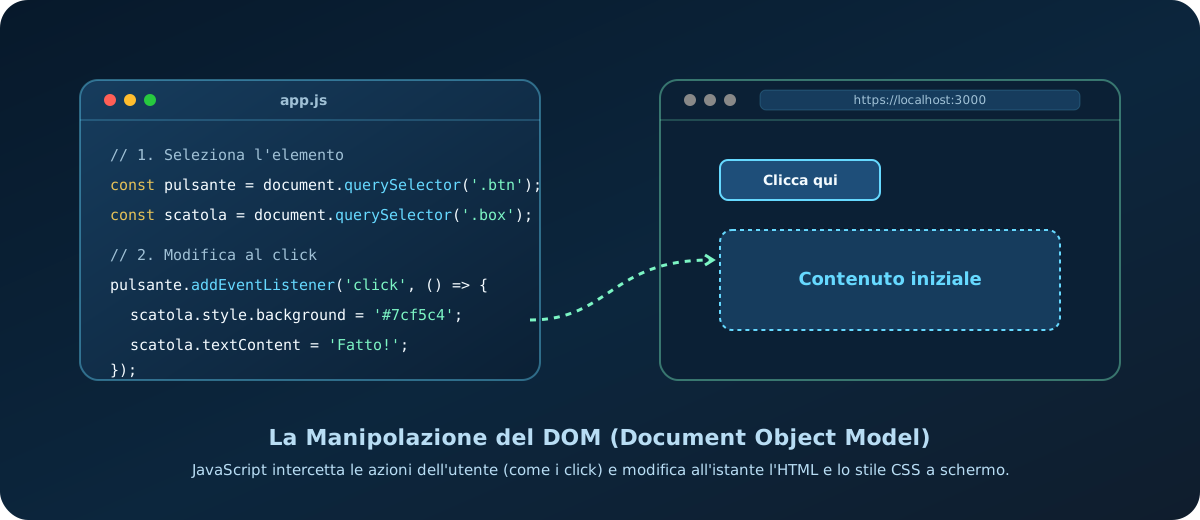
The DOM (Document Object Model) is the tree structure the browser builds to represent your page. JavaScript queries and modifies it in real time.
Selecting elements with querySelector
Use the modern methods based on CSS selectors, and nothing else:
- `document.querySelector(".class")`: returns the *first* element matching the class.
- `document.querySelectorAll(".class")`: returns an iterable collection of *every* matching element.
Changing styles safely
Never write CSS properties directly in JavaScript (`element.style.color = "red"`). It is a bad practice that makes maintenance extremely difficult.
The correct approach is to **define the visual states in CSS** (create an `.is-active` class with its rules, for instance) and use JavaScript purely to **add or remove that class** in the DOM:
const popup = document.querySelector(".popup");
popup.classList.add("is-active");
popup.classList.toggle("is-open"); // Aggiunge se manca, rimuove se c'è
textContent vs innerHTML: XSS safety
If you have to print user-supplied text onto a page, always use `textContent`. Avoid `innerHTML`, since it interprets HTML tags and could let attackers inject malicious scripts into your site (a Cross-Site Scripting, or XSS, attack).
8. Catching clicks: handling events
The browser fires an event every time something happens: a click, mouse movement, a keystroke, or loading finishing.
You bind behaviour to an event by attaching a listener directly from JavaScript:
const pulsante = document.querySelector("#btn-invia");

function gestisciInvio(event) {
  event.preventDefault(); // Blocca l'invio del form e il ricaricamento della pagina!
  console.log("Dati inviati in modo asincrono.");
}

pulsante.addEventListener("click", gestisciInvio);
Using `event.preventDefault()` is crucial in forms: it stops the browser's default behaviour so we can handle submission in the background with JavaScript.
9. Asynchrony explained for humans: async/await
When you query an external server to download data, you can't know how long the response will take. JavaScript handles that waiting through **promises**.
A promise can be in one of three states: `Pending`, `Fulfilled` (resolved successfully) or `Rejected` (failed with an error).
The simplicity of async/await
To avoid messy code built on complex constructs, we use the modern `async/await` syntax. It lets you write asynchronous code with the same linear, line-by-line structure as synchronous code:
// Contrassegniamo la funzione come asincrona
async function caricaDati() {
  console.log("Caricamento avviato...");

  // Il browser aspetta la risposta della fetch senza bloccare il resto della pagina
  const risposta = await fetch("https://api.esempio.com/prodotti");
  const prodotti = await risposta.json();

  console.log("Prodotti ricevuti:", prodotti);
}

caricaDati();
console.log("Questo log appare PRIMA dei prodotti, perché l'API è asincrona!");
10. Avoiding self-destruction: try/catch
If JavaScript hits an unrecoverable error (an API call that fails because the network is down, or malformed JSON), it stops execution abruptly. In that state, all of your scripts stop working.
To avoid catastrophic crashes, wrap risky code in a `try/catch` block and handle the error gracefully:
async function scaricaProfilo() {
  try {
    const risposta = await fetch("https://api.esempio.com/profilo");
    const dati = await risposta.json();
    console.log("Profilo caricato:", dati.nome);
  } catch (errore) {
    // Eseguito solo in caso di errore nel blocco try
    console.error("Non è stato possibile caricare il profilo:", errore.message);
    mostraMessaggioDiErroreAllUtente();
  } finally {
    // Eseguito sempre, a prescindere dal successo o dal fallimento
    nascondiSpinnerCaricamento();
  }
}
11. Web Storage: saving the user's preferences
If a user switches your site to dark mode, you want that choice to persist even after they close the browser and come back the next day. That's what localStorage is for.
localStorage vs sessionStorage
Both store key-value pairs in the browser as strings, but their lifetimes differ:
- `localStorage`: the data never expires and stays in the browser until it is cleared by code or by the user.
- `sessionStorage`: the data is lost the moment the browser tab is closed.
// Salvare un dato
localStorage.setItem("temaScuro", "true");

// Leggere un dato
const tema = localStorage.getItem("temaScuro");

// Rimuovere un dato
localStorage.removeItem("temaScuro");
Storing complex objects
Because localStorage only accepts **strings**, trying to store an object directly turns it into the useless text `"[object Object]"`. To store complex structures (objects or arrays) you first have to convert them to JSON strings with `JSON.stringify`, and convert them back on retrieval with `JSON.parse`:
const carrello = ["Scarpe", "Zaino"];

// Salvataggio (conversione in stringa JSON)
localStorage.setItem("carrello_utente", JSON.stringify(carrello));

// Estrazione (conversione in array utilizzabile)
const datiSalvati = localStorage.getItem("dati_utente");
const carrelloArray = datiSalvati ? JSON.parse(datiSalvati) : [];
Security warning: never store passwords, authentication tokens or sensitive personal data in localStorage. Any JavaScript running on the page can read it freely, which makes it an easy target in an XSS attack.
12. JavaScript's wildest behaviours (and how to survive them)
JavaScript was written in a hurry in the early 1990s and still carries a few historical quirks that make developers smile and beginners despair. Here are the four most famous, and how to deal with them:
This isn't a JavaScript bug but a consequence of how computers convert decimal numbers into binary fractions. To compare prices in an e-commerce site without stray microscopic fractions, always round decimals with `toFixed()`, or work with whole numbers (convert to cents before doing the maths):
const totale = (0.1 * 10 + 0.2 * 10) / 10; // Restituisce esattamente 0.3!This is a genuine historical bug in the original 1995 JavaScript engine. It can't be removed or fixed, because doing so would break millions of websites currently live on the internet. To check whether a variable really is an object while excluding `null`, do a double check:
if (variabile && typeof variabile === "object") { ... }`NaN` represents the result of an invalid mathematical operation (`"hello" * 5`, say). In JavaScript, `NaN` is the only value in the world that isn't equal to itself when compared with `===`. To test whether a value is `NaN`, use the native method:
Number.isNaN(valore); // Restituisce true o false in modo affidabileAdd an empty array to another empty array (`[] + []`) and you get an empty string `""`. Add an empty array to an empty object (`[] + {}`) and you get the string `"[object Object]"`. To avoid these silent bugs, always use strict equality `===` and never add variables of different types without converting them explicitly first (with `Number()` or `String()`).
13. Professional debugging: beyond console.log
Sprinkling `console.log()` everywhere is the quickest but messiest way to debug. Browsers offer far better tools for inspecting the state of your code.
- `console.table()`: give it an array of objects and it formats them into a beautiful sortable table in the console.
- `console.dir()`: shows a DOM object's property list as a pure JavaScript object rather than printing its HTML.
The power of the debugger statement
Put the **`debugger;`** keyword in your script and keep the browser's developer tools open, and execution freezes instantly at that exact point:
function calcolaPrezzo(base) {
  const tasse = 1.22;
  debugger; // Il browser congela la pagina ed evidenzia questa riga nei DevTools
  return base * tasse;
}
You can then inspect the current value of every variable at that millisecond and step through line by line, finding problems without littering the code with throwaway logs.
14. Quick reference (cheat sheet)
Here is a quick recap of the main ways to query and modify the DOM:
| Method | Parameter / usage | What it does |
|---|---|---|
| querySelector() | '.class' | '#id' | Selects the first element matching the given CSS selector. |
| addEventListener() | 'click', callback | Attaches a listener that runs JavaScript in response to the event. |
| classList.add() | 'is-active' | Adds a CSS class to the element to change its visual state safely. |
| textContent | 'Plain text' | Reads or writes the text inside the element (safe against XSS attacks). |
15. Practical challenge: put yourself to the test
Put the DOM and event logic into practice in JavaScript:
Build a live character counter for a text box (textarea) that changes color (turning red, for instance) once the character limit is exceeded.
Step-by-step instructions:- Select the textarea with
document.querySelector('.message')and the counter withdocument.querySelector('.counter'). - Add an event listener for the
'input'event on your text box. - Inside the listener's callback, read the current length of the typed text.
- Update the counter's
textContentproperty to show the current count (for examplemsgLen + " / 100").
16. Where to go next
You've taken your first big steps into programming logic for the web. Here is where to point your next reading to build on these skills:
- NPM and Vite: the essential tutorial for organizing complex projects by splitting code into self-contained files (import/export modules) instead of writing one enormous script.
- Browser DevTools: go deeper into the Network panel and the source code inspector.
- Web accessibility basics: find out how to make sure your JavaScript doesn't get in the way of keyboard or screen reader navigation.
- All tutorials: back to the guide index to keep learning.
17. Check what you have learned (quiz)
Test what you have learned in this guide with a quick 10-question multiple-choice quiz.